I was testing this the other day and spent what felt like forever just watching Claude click things on my screen. It's weird because you know you're not in control anymore, but you're also watching something that's supposed to be an AI figure out where to click. And honestly, that's exactly what Claude's computer use feature is doing right now across thousands of people's desktops, and I've been testing it long enough to have real opinions about whether it's actually useful or just a neat parlor trick.
Here's the quick take: Claude can now see your screen, move your mouse, click things, type information, and scroll around just like you'd do it yourself. Anthropic shipped this as an API-only beta back in October 2024, which meant you had to be a developer to play with it, but now it's available to anyone with Claude Pro. The question I've been wrestling with is whether this actually changes how you work or if it's just another feature you'll try once and forget about.
The capability represents a genuinely significant milestone in AI development, even if the consumer impact takes time to materialize. For decades, the idea of teaching AI to control a computer the way humans do has existed in research papers and science fiction. The technical challenges are immense. The AI has to see what's on your screen the same way you do, understand the spatial relationships between elements, read text, make decisions about what to do next, and execute those decisions through mouse and keyboard inputs. All of that while maintaining context through multiple sequential steps. The fact that this is now working reliably enough to be deployed to thousands of people is actually wild when you think about it. It's not perfect, but it's real and it's available. And I think we should be honest about what it actually does well and where it'll make you want to just do it yourself.
What Is Claude Computer Use and Why Should You Care
Computer use is technically an API feature that Anthropic released in October 2024. What that means in practical terms is that developers could build applications that give Claude the ability to screenshot your screen, move the cursor, and execute mouse clicks and keyboard input. But what most people care about – including me – is the Claude Pro version that let you give Claude direct control over your computer through the web interface starting in late March 2026.
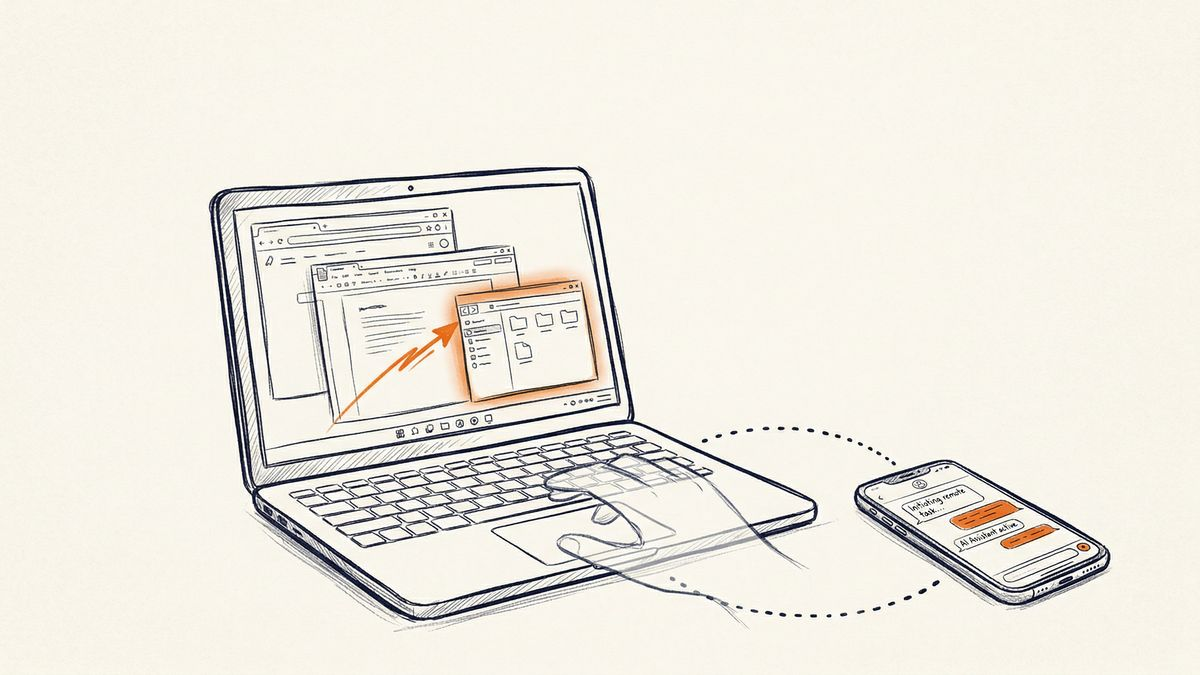
The core idea is you tell Claude to do something on your computer, and instead of you doing it, Claude attempts to navigate the interface and complete the task. You can ask it to fill out a form, organize files, book a meeting, research something while navigating multiple tabs, or automate a repetitive task you normally handle yourself. Think of it as a junior employee who can see exactly what's on your screen and execute the tasks you describe – except this employee is available at 3 AM and never gets tired.
The reason this matters is because we've been waiting for this. For years, people in AI research and startups have been talking about the next frontier after conversational AI being computer use. And it's finally here. The constraint isn't whether the technology works anymore – it does, surprisingly well in many scenarios – the constraint is whether it's actually useful for the specific things you're trying to do, and how much you trust an AI to be unsupervised on your computer.
The Mechanics: How Claude Actually Sees and Controls Your Screen
This is where things get interesting from a technical standpoint. Claude doesn't have access to your entire system the way you might fear. It can't see your file system or access data unless it's on the screen you're looking at. What it does get is a screenshot of your active window at each step, plus the ability to move the mouse, click, type, and scroll. It's operating in the same visual information space that you are – it sees what's displayed on your monitor, nothing more.
The implementation works by dividing your screen into a grid and using coordinate-based clicking. You can actually see the coordinates in the interface if you enable it, which is useful for debugging when Claude gets confused about where something is. The model uses vision capabilities to understand what's on screen (the same vision that powers image recognition in Claude), decides what action to take, executes that action, takes another screenshot, and repeats. If you're running Claude on a high-res display, the vision processing has to handle more pixels and more detail, which sometimes means slower performance.
One thing that caught me off guard testing this: Claude can get confused by elements that overlap or by UI patterns it hasn't seen before. If you have transparency effects, overlapping windows, or unusual color schemes, Claude sometimes struggles to identify clickable elements. There's also a latency issue – if your computer is slow to respond to clicks or if you've got network lag in the screenshot transfer, Claude has to wait and sometimes misinterprets the delay as a failed action. It's not instantaneous, even though it looks fast in demos.
What You Can Actually Do With It Right Now
The honest answer is: quite a lot, but with caveats. I've been using it for filling out forms where I have structured data – address changes, expense reports, job applications. Claude handles that reasonably well. It reads the form, understands what each field is asking for, and fills it in. I tried using it to research competitor pricing by having it visit three different websites, take notes on pricing tiers, and summarize them. That actually worked, and it was faster than me doing it manually because Claude doesn't get distracted by reading tangential articles.
The real wins are the repetitive tasks. Filing expense reports. Bulk-uploading documents to a web interface. Filling out forms with data you've already prepared. Data entry work where you have the information and just need something to click the right buttons and type it in. I tried having Claude reorganize my files into folders, and it did that correctly – it read the filenames, understood the pattern, and moved things into the right directories without deleting anything.
Where I noticed it getting genuinely useful: I had a spreadsheet with 200 rows of customer feedback, and I needed it parsed into a database system that doesn't have an import function. Instead of spending an hour clicking through the interface one row at a time, I gave Claude instructions on how the system worked and let it process the first 30 rows while I watched. Once I confirmed it was doing it right, I told it to continue. It took about 45 minutes to get through all 200 rows with a few human corrections along the way. That's the kind of task where computer use starts making a real difference. You're not replacing a human entirely – you're replacing 45 minutes of your time with 5 minutes of supervision.
But here's the thing: it doesn't work uniformly. Some days it's excellent, some days it gets stuck on tasks that seem trivial. I've watched it click the same button three times because the page didn't load fast enough and it thought the button didn't work. I've seen it get confused by a modal dialog and take a screenshot instead of closing it. It'll complete a 5-step process flawlessly and then fail on step 6 because the success confirmation message looked slightly different than expected.
OSWorld Benchmarks and Real-World Performance
Anthropic published benchmarks on something called OSWorld, which is a standardized test of computer use capabilities across different AI models. Claude achieved a 92% success rate on what they call "simple" tasks, which is honestly impressive. A simple task in their testing is something like opening a web browser, navigating to a specific URL, and filling out a form. That's actually representative of what a lot of people use computers for.
On more complex tasks – things that require multiple applications, context switching, or understanding workflows – the performance drops. Claude still scores in the 70-80% range on medium complexity tasks, which is better than earlier versions, but it's also where you start seeing the human element matter. You can't just tell Claude to "reorganize my digital life" and walk away. You need to give it specific, sequential instructions.
The comparison is worth understanding: GPT-5.4 with computer use capabilities is expected to score higher on these benchmarks, based on early testing. Microsoft Copilot has its own computer use implementation, though it's tightly integrated with Windows and less available to general users. The thing about benchmarks though is they don't measure what happens when you're actually using this on your real computer with your real, messy interfaces and your existing workflow. Benchmarks test controlled scenarios. Your actual use case will be weirder than any benchmark.
Limitations and Rough Edges
Let me be direct: Claude can't handle multi-monitor setups well. If you're using two monitors and the thing you want Claude to interact with is on the second monitor, you'll likely need to move it to the primary display first. This is a known limitation but it's frustrating because a lot of professionals work on multiple monitors. The coordinate system and screenshot resolution don't extend cleanly across displays.
DPI scaling is another problem. If you've got your Windows display scaling set to 125% or 150% for readability, Claude sometimes misidentifies where elements actually are on the screen. The coordinates it calculates don't match the visual position. You can work around this by temporarily switching to 100% scaling, doing the task, and switching back, but that's not a workflow most people should accept.
There's also latency in the loop. Take a screenshot, process it, decide on an action, execute the action, repeat. On a fast computer with good internet, that's quick. On a slower machine or with network lag, you're waiting a few seconds between each step. For long tasks (50+ sequential actions), that adds up. And if something goes wrong halfway through, you need to understand what happened and either correct Claude or start over.
The instruction-following can be finicky. Claude sometimes makes assumptions about what you want that turn out wrong. You ask it to open three documents and combine them into one, and it opens them but then doesn't know what "combine" means in the context of your specific application. It'll wait for you to clarify. That means it's not fully autonomous – you need to supervise and jump in when it gets stuck.
Pricing and the Vercept Acquisition
Claude Pro is $20/month, and computer use is included for Pro subscribers. So there's no separate fee for the feature itself – if you're already paying for Claude Pro, you get computer use as part of the package. The API pricing for developers building computer use applications is $0.30 per 1000 screenshots, which can add up if you're running long tasks, but for occasional use it's modest.
What's more interesting is the Vercept acquisition Anthropic announced in March 2026. Vercept is an AI safety company that's been working on what they call "agent transparency" – basically, being able to audit and understand what an AI agent is doing when it has computer access. Anthropic acquired them to work on exactly this problem: making sure that when Claude has control over your computer, you and Anthropic can verify it's doing what you asked and nothing malicious.
That's a smart move because it acknowledges the elephant in the room – a lot of people are nervous about giving an AI unsupervised access to their computer. If Claude can access sensitive files, banking websites, email, or personal documents just because it has mouse and keyboard control, the security implications are significant. The Vercept acquisition suggests Anthropic is taking that seriously and trying to build infrastructure to make sure computer use is safe to deploy at scale.
How It Compares to GPT-5.4 and Microsoft Copilot
OpenAI released GPT-5.4 with computer use capabilities in early 2026, and based on third-party testing and some hands-on experience, it's slightly better at complex multi-step workflows. GPT-5.4 seems to understand the intention behind tasks more accurately – you can give it looser instructions and it'll infer the right steps more reliably. Claude sometimes needs more specific guidance on how to approach a problem.
That said, the gap isn't enormous. Both models struggle with the same kinds of tasks: heavily customized UIs, unusual layouts, and things that require deep context switching. Both get stuck on the same things: loading states, pop-up dialogs, and unusual button placements. The practical difference is probably 5-10% in success rates on most tasks, which matters but isn't a dealbreaker.
Microsoft Copilot Pro has deep Windows integration, which is nice if you're on Windows and doing Windows-specific tasks. It understands Windows keyboard shortcuts, Windows-specific workflows, and Windows applications better than Claude. But it's less available – you have to be using it within Windows, and it's not as easy to run on other operating systems. It's more of a Windows-specific assistant than a general-purpose tool.
The Privacy Question
This is the one that makes people genuinely uncomfortable, and rightfully so. When Claude has screenshot access to your computer, Anthropic is receiving visual data from your screen. Anthropic has stated that they don't store this data by default – the screenshot is processed and discarded. But during your active session, a human (if you enable feature verification) or just the system logs might see what's on your screen.
The risk matrix here is real. If you're using computer use to interact with banking websites, email, sensitive documents, or anything with personal information, you're exposing that data to Anthropic's systems. You can mitigate this by being intentional about what you ask Claude to do – use it for filling out public forms and navigating to research sites, but not for accessing anything sensitive. But the easier approach is to just not use computer use for anything you wouldn't be comfortable with a human AI researcher potentially seeing.
Anthropic's documentation is clear about this, and I appreciate that they're not hiding it. But it does mean that if you've got sensitive information on your screen, you either need to trust Anthropic completely or you need to find another solution.
Should You Actually Use This?
The honest answer is: it depends on what you're doing. If you've got repetitive data entry work, form filling, or multi-step workflows that involve clicking through websites and typing information, Claude's computer use will save you time. The break-even point is probably around 15-20 minutes of manual work – once a task would take you that long to do by hand, it's worth trying Claude first.
You shouldn't use it expecting full autonomy. You'll get 60-80% of the way through a task and then need to jump in and fix something or clarify an instruction. It's not a "set it and forget it" feature. But that's actually fine – even partial automation is valuable if it cuts your time on routine work in half.
The privacy concern is the thing that'll keep a lot of people from using it, and that's reasonable. If you're working with sensitive information, using Claude's computer use probably isn't worth the risk until Anthropic releases stronger privacy guarantees.
The Verdict
Claude's computer use is real, it works, and it's genuinely useful for specific categories of tasks. It's not the replacement for your job that some of the hype suggests, but it is the kind of tool that can save you 5-10 hours per week if you've got the right kind of work. The fact that it's included with Claude Pro rather than being a separate expensive feature means the barrier to trying it is low.
Is this the beginning of the end for computer-based work? No. Is it a glimpse of where AI is headed? Yes. In 2-3 years, I'd expect these systems to be significantly better – faster, more reliable, better at understanding ambiguous instructions, and with stronger safety guarantees. Right now, it's a solid beta feature that works well enough for supervised automation of specific tasks.
The smart move is to try it with something low-risk – have it fill out a form on a public website, or help you organize files that don't contain sensitive information. See if it works for your workflow. If it does, great – you've got a new tool. If it doesn't, you've learned what it can't do, and you can decide if it's worth revisiting in 6 months when the next version ships.
Affiliate Disclosure: Some links in this article may be affiliate links. If you purchase a subscription through these links, StackBuilt AI may earn a small commission at no additional cost to you. We only recommend tools we have personally tested and believe in. Read our full affiliate disclosure.